
Pixera
Live link with Pixera server to share cues over network sync
Export to Pixera
To Export go to File > Export… > Pixera
Cue Playbacks (CuePoint Types)
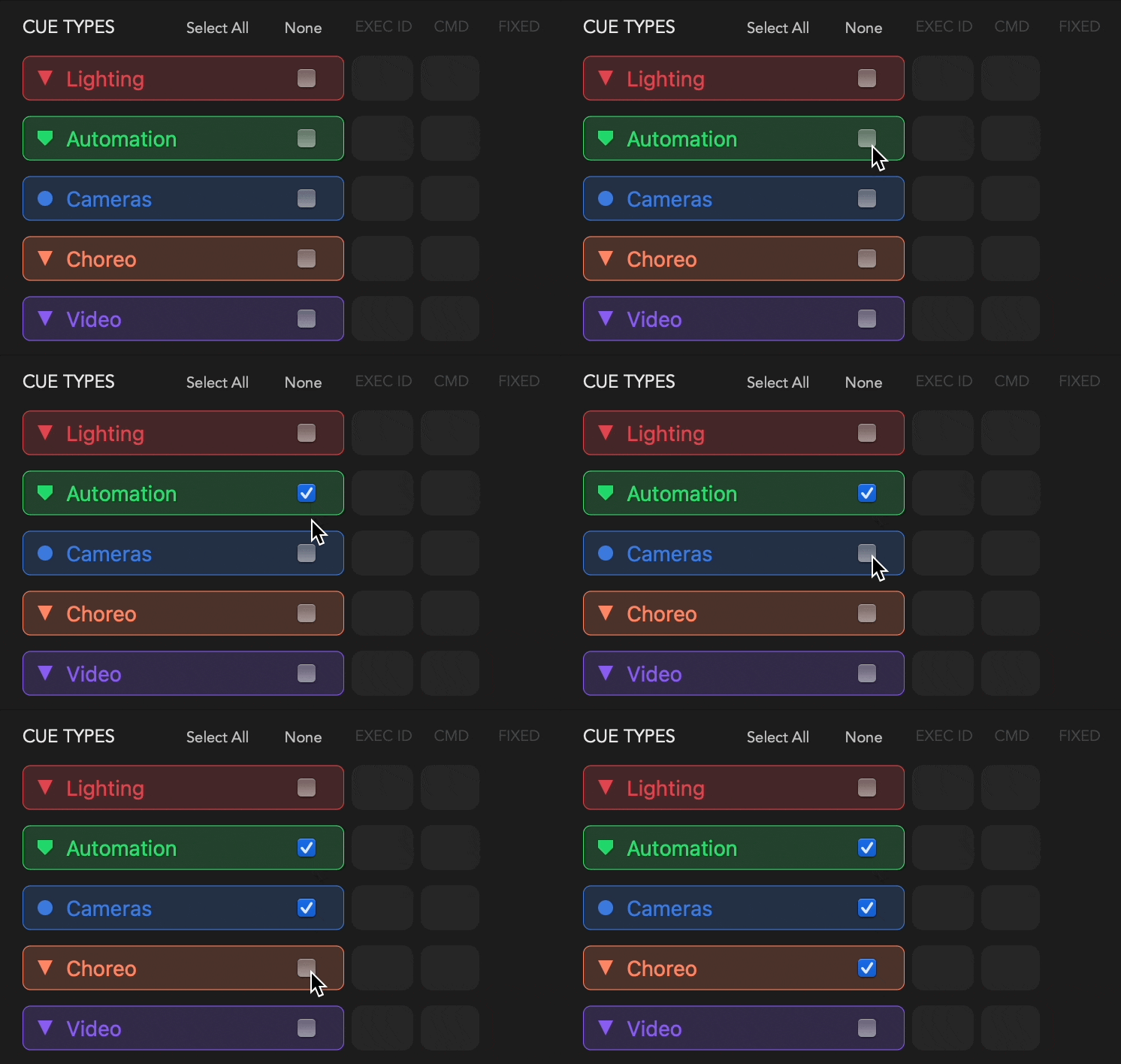
Select which CuePoint Types you would like to sync.
Track Playbacks (Tracks)
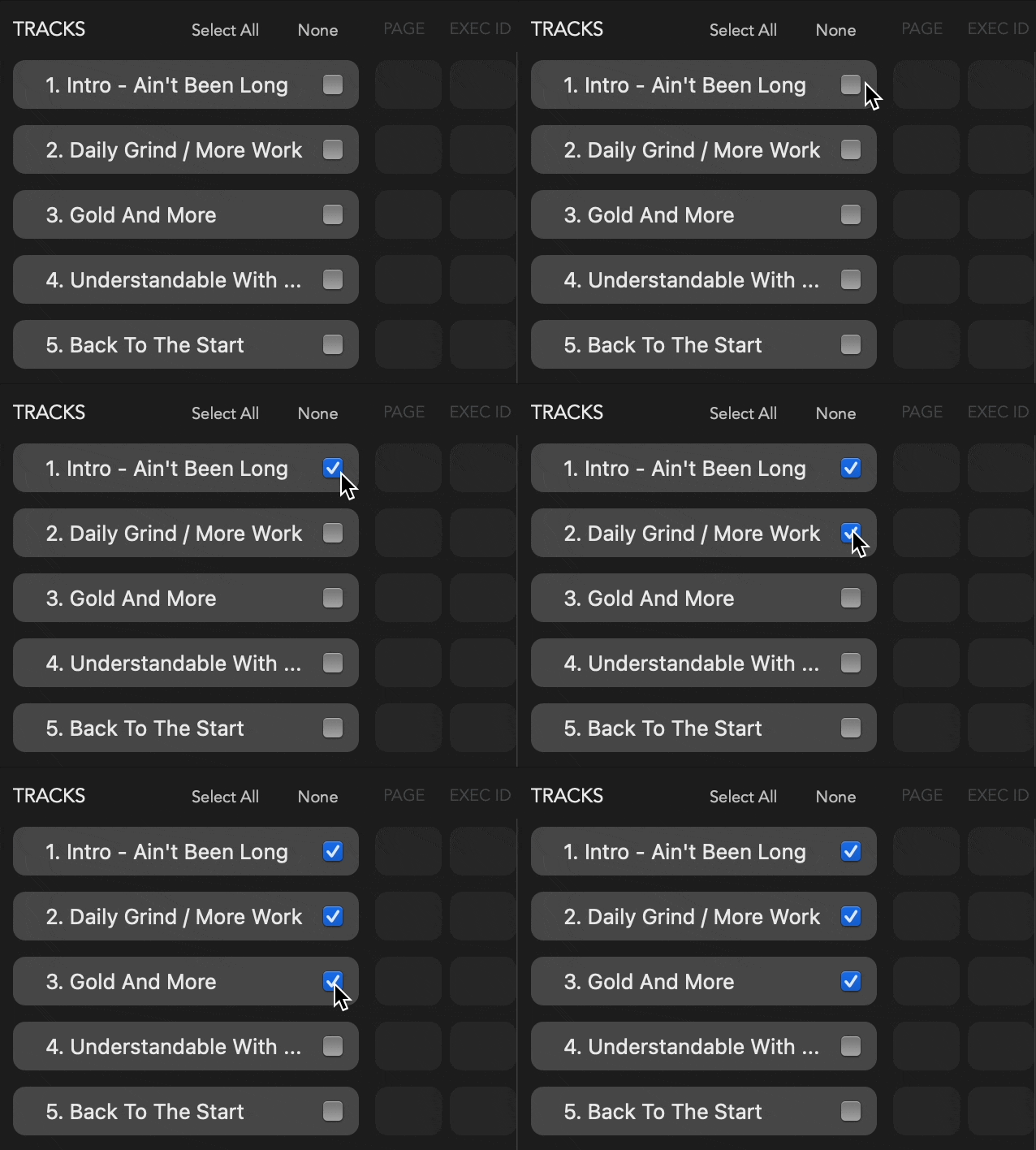
Specify which tracks you wish to sync.
Connecting the Live Link on Pixera
- In Pixera, Open Settings (top right corner)
- Select API
- Select Input Network Adapter
- Make sure there is an HTTP/TCP Protocol selected and the Port number matches that in CuePoints.

Connecting the Live Link on CuePoints
- Press
Prepare Pixera Live Link - Enter the IP Address and Port Number to match Pixera.
- Press
Connect - Click in the “Pixera Timeline” Field to select/change the timeline destination.
- Click on the “Track Name” Field to select it so it is highlighted in Blue.
- Press
Send Cues For Selected Track - You will see the cues populated on the selected Pixera track.
